In Übereinstimmung mit einer kürzlichen Änderung des US-Finanzministeriums (OFAC) wurden die TOEFL- und GRE-Tests im Iran mit sofortiger Wirkung ausgesetzt. Iranische Staatsangehörige können weiterhin außerhalb Irans testen, wo Tests verfügbar sind. Betroffene Testteilnehmer werden direkt bezüglich Stornierungen und nächsten Schritte kontaktiert. [Mehr erfahren]
Ausrüstungs- und Umweltanforderungen
Wenn Sie planen, sich für den TOEFL Essentials-Test anzumelden, überprüfen Sie und bestätigen Sie, dass Sie diese Anforderungen erfüllen, bevor Sie sich für einen reibungsloseren Testtag anmelden. Wenn Sie diese Anforderungen am Prüfungstag nicht erfüllen, können Sie nicht absolvieren. In diesem Fall erhalten Sie keine Rückerstattung oder eine kostenlose Verschiebung.
Laden Sie den ETS Secure Browser herunter, indem Sie einen der untenstehenden Links auswählen.
Dann führen Sie die Datei aus, um die Installation abzuschließen. Während Sie im Browser sind, klicken Sie auf die Schaltfläche "Equipment Check", um zu bestätigen, dass Ihre Ausrüstung für den Testtag bereit ist.
Sehen Sie sich die untenstehenden Screenshots an, um zu erfahren, was Sie beim Betrieb des ETS Secure Browsers erwarten können.
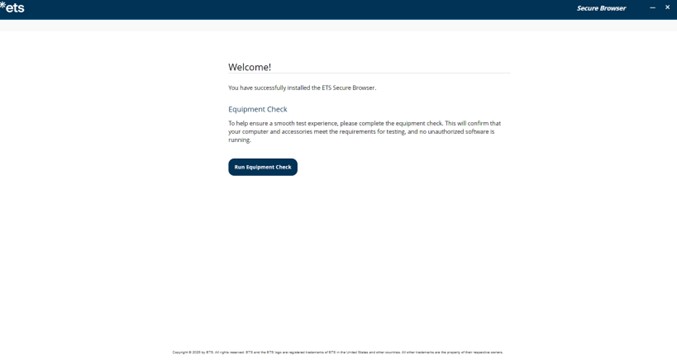
Sobald du den ETS Secure Browser öffnest, wirst du zu diesem Begrüßungsbildschirm geführt. Von hier aus kannst du die Ausrüstungsprüfung durchführen.
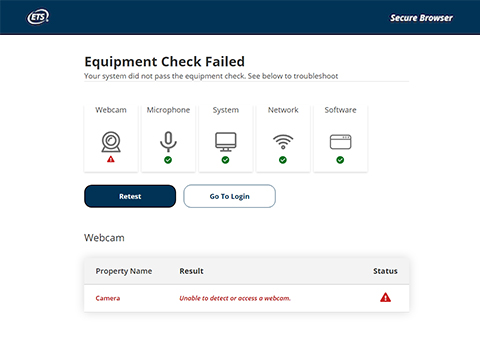
Nach Abschluss der Ausrüstungsprüfung sehen Sie den Status Ihrer Ausrüstung. Wenn einige Teile ausgefallen sind, sehen Sie eine rote Dreiecksanzeige sowie Tipps, wie Sie das Problem lösen können.
Die Geräteprüfung beinhaltet auch eine Bandbreitenkontrolle. Da die Bandbreite je nach Tageszeit und Netzwerknutzung variiert, führen Sie die Geräteprüfung zu mehreren verschiedenen Zeiten durch, um herauszufinden, welche Zeit am besten passt. Außerdem sollten Sie die Prüfung am selben Wochentag und zur gleichen Tageszeit wie Ihr Test durchführen. So überprüfen Sie Ihre Bandbreite in einer Umgebung, die der beim Test ähnelt. Sehen Sie sich das hilfreiche Tech Tips-Video auf der Seite zum At Home Test Day an.
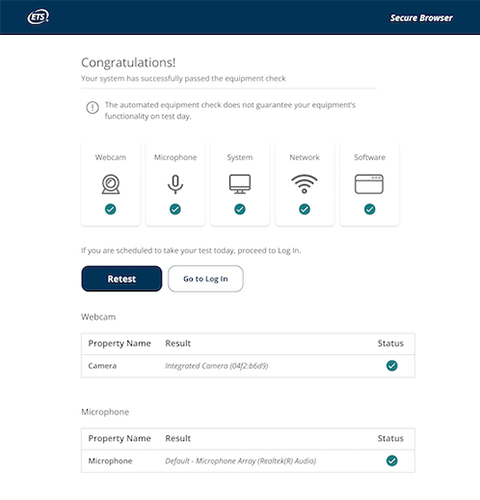
Wenn Sie die Ausrüstungsprüfung erfolgreich bestanden haben, gelangen Sie auf die Glückwunschseite.
Wenn Ihre Überprüfung fehlschlägt und Sie die Probleme nicht selbst beheben können, besuchen Sie den Equipment Check Support für Tipps zur Fehlerbehebung.
Live-Helpdesk-Techniker stehen Ihnen vor dem Prüfungstag zur Verfügung.
Ausrüstungsanforderungen
- Desktop or laptop computer. You can't use a tablet or mobile device.
- Only one monitor or screen. Multiple monitors or dual screens are not permitted.
- Only one keyboard. Multiple keyboards are not permitted.
- Approved operating system, which must be licensed. Unlicensed or test-mode versions are not permitted.
- PC: Windows operating system, version 11 or higher
- MAC: Mac OS X® 10.13 or higher
- Use an internal or external speaker to take your test and hear the proctor.
- Headsets or earphones aren't allowed.
- Use an internal or external microphone that isn't part of a headset to take your test and communicate with the proctor.
- Headsets and earphones aren’t allowed.
- A separate webcam, or a camera that is built into the computer or monitor screen, is allowed.
- You’ll need to be able to move the camera to show the proctor a 360-degree view of the room. This includes showing your tabletop surface and the area below it.
- A fully charged smartphone or tablet with a working camera that runs on iOS 12 or later or Android 8 or later
- A stable internet connection
- A sturdy, heavy object to support your phone
- Other devices taking up bandwidth can cause issues during your test. Be aware of other devices that are using significant internet bandwidth when you conduct your equipment check and on test day.
- Close all browsers and applications that you don’t need for the test. This can help prevent bandwidth issues while you test.
- Disable any screen-sharing or remote-access software before the test. You’ll need to keep this software disabled throughout the test and set it so that the software won’t open automatically during the test.
Umwelt- und Testraumanforderungen
- You’ll need to be alone in a room. No one may enter the room during the test.
- You can't take the test in a public space such as a park, internet cafe or restaurant.
- You’ll need to close all the doors in the room before beginning the test.
- All transparent walls, doors or large open windows must be covered.
- Walls must be clear of any material related to the test.
- Your computer and keyboard need to be on a desk or other tabletop surface and remain connected to a power supply throughout testing.
- Position your table and chair so the door to the room will be visible to the proctor. The proctor may require you to do this at check in.
- The tabletop and surrounding area must be clear of all items not approved for use during the test. This includes cameras, notes, study materials, and cell phones.
- If you use your cell phone for check-in, place it behind you and out of reach after check-in, unless it's being used as a second camera for monitoring during the test.
- You’ll need to sit in a standard chair. You can't sit or lie on a bed, couch or overstuffed chair.
- Food and drink aren't allowed during the test.
- Your ears and face need to remain visible throughout the test, not covered by a hat, hair or other items. Religious headwear is permitted if your ears remain visible during the test. Face masks may not be worn during check-in or any part of the at home testing session.
- Dress appropriately for your test. You'll be monitored via camera by the proctor, and your photo will be shared with institutions that receive your scores.
- You’ll need to remove all headphones, smartwatches, face masks, jewelry, tie clips, cuff links, ornate clips, combs, barrettes, headbands and other hair accessories before checking in for your exam. You do not need to remove wedding and engagement rings.
- For security purposes, you may not take notes on paper.
- You may use one of the following to take notes:
- one small desktop whiteboard with erasable marker, no pencil or pen
- one sheet of paper inside a transparent sheet protector, with erasable marker
- At the end of the test, you'll need to show the proctor that all notes have been erased.